How to pull up and display non continuous verses

Here is one of my favorite Accordance tips!
Let's say you find yourself in a situation where someone has just rattled off two, three, four, or more verse references in a row and you would like to quickly pull those references up (or investigate the sources for yourself). Well, in Accordance, this is easy to do!
Try this example:
- Step one: Open Accordance
- Step two: Select a Bible if you haven't done so already. (For this example I choose the JPS 1985)
- Step three: locate the Search Entry Box click and type in: Genesis 1:1, Jeremiah 26:1, Jeremiah 27:1, Jeremiah 28:1, Jeremiah 49:34, and Hosea 9:10

- Step four: then click the entry button on your keyboard and the verse should appear.
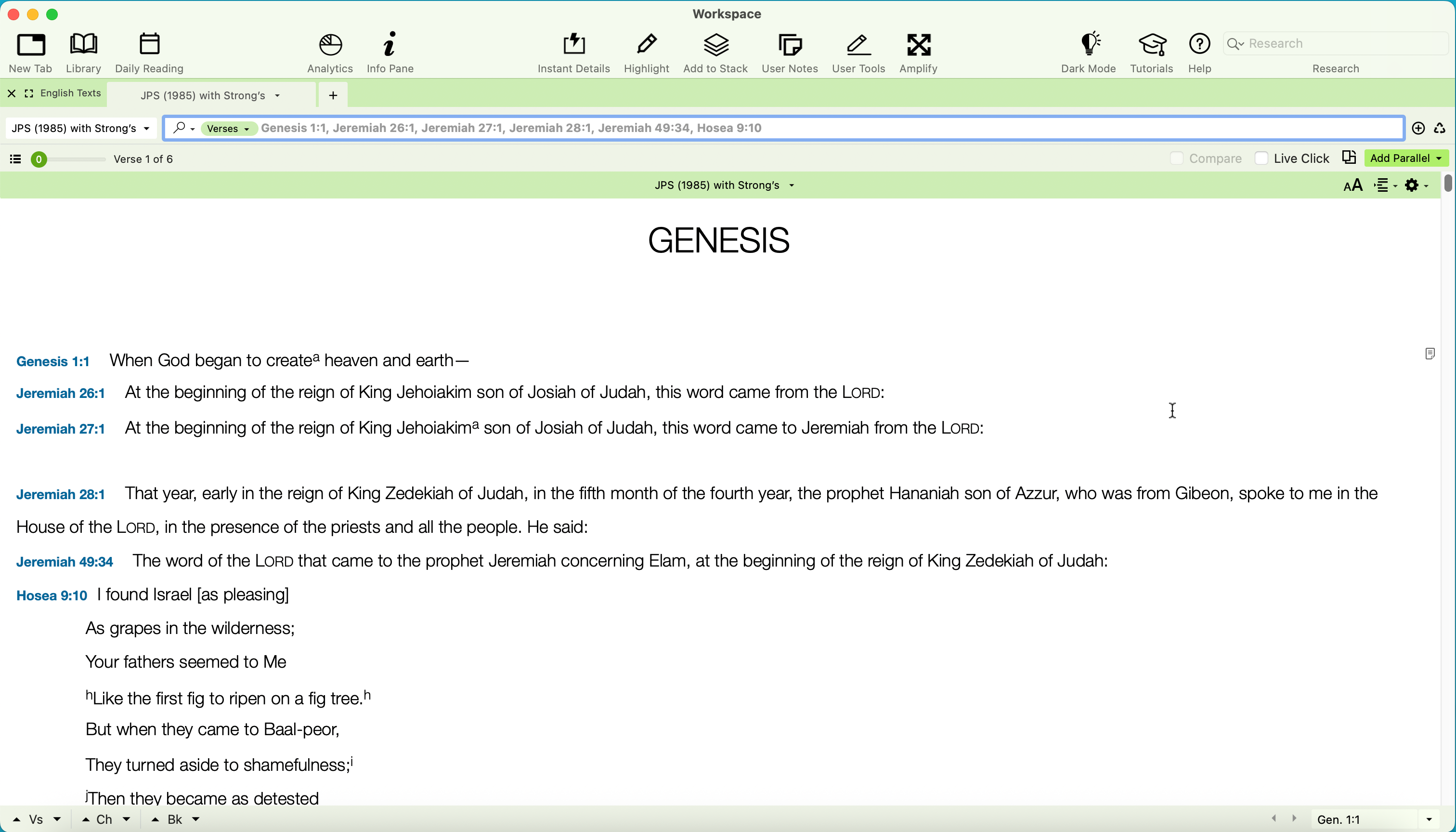
- Step five:
You can adjust how much context surrounds a verse in Accordance Bible Software by using the Context slider located on the Hit Options bar at the top of the search results area.
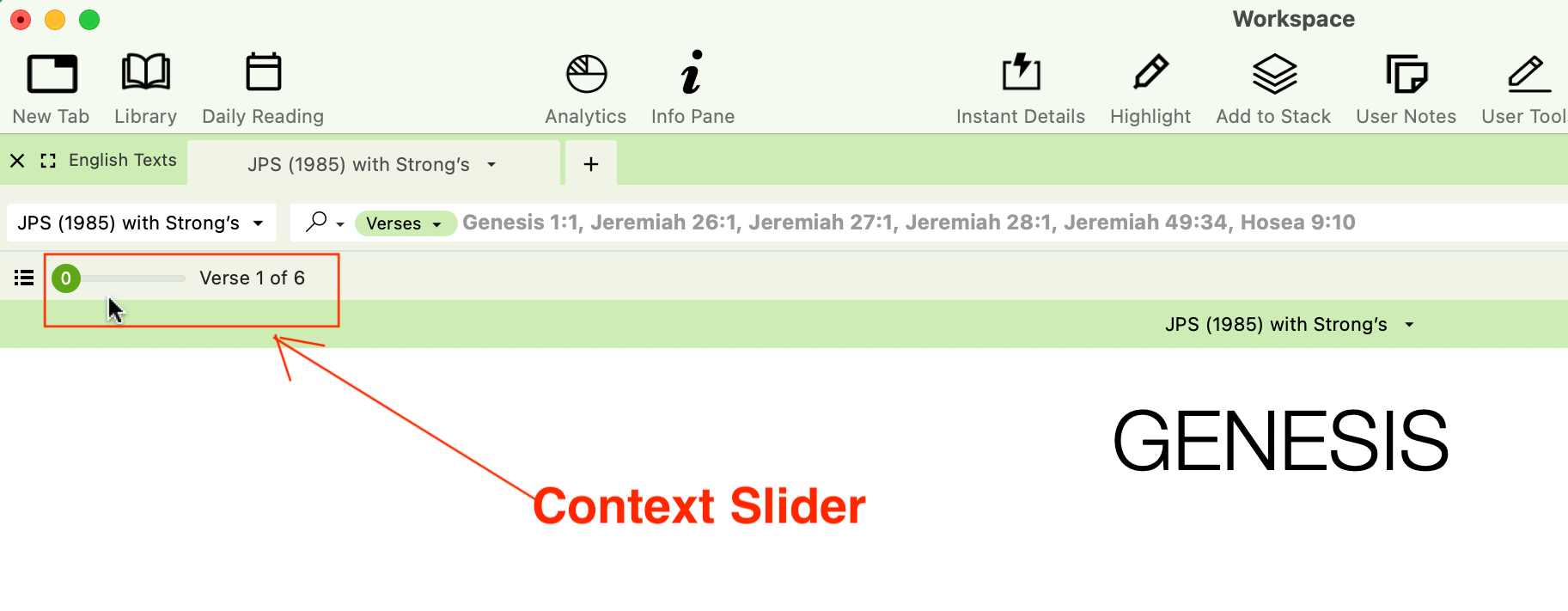
Adjusting Context in Search Results
- Locate the Slider: Look just below the search entry box and above the text window panes in your search tab.
-
No Context (0): Setting the slider to
0displays only the specific verses that match your search terms (the "hits"). - Adding Verses (1 through 9): Drag the slider to the right (numbers 1 through 9) to display that exact number of verses before and after each hit verse.
- Full Context (A / All): Drag the slider all the way to A to view the entire text and navigate continuously through the chapter or book.
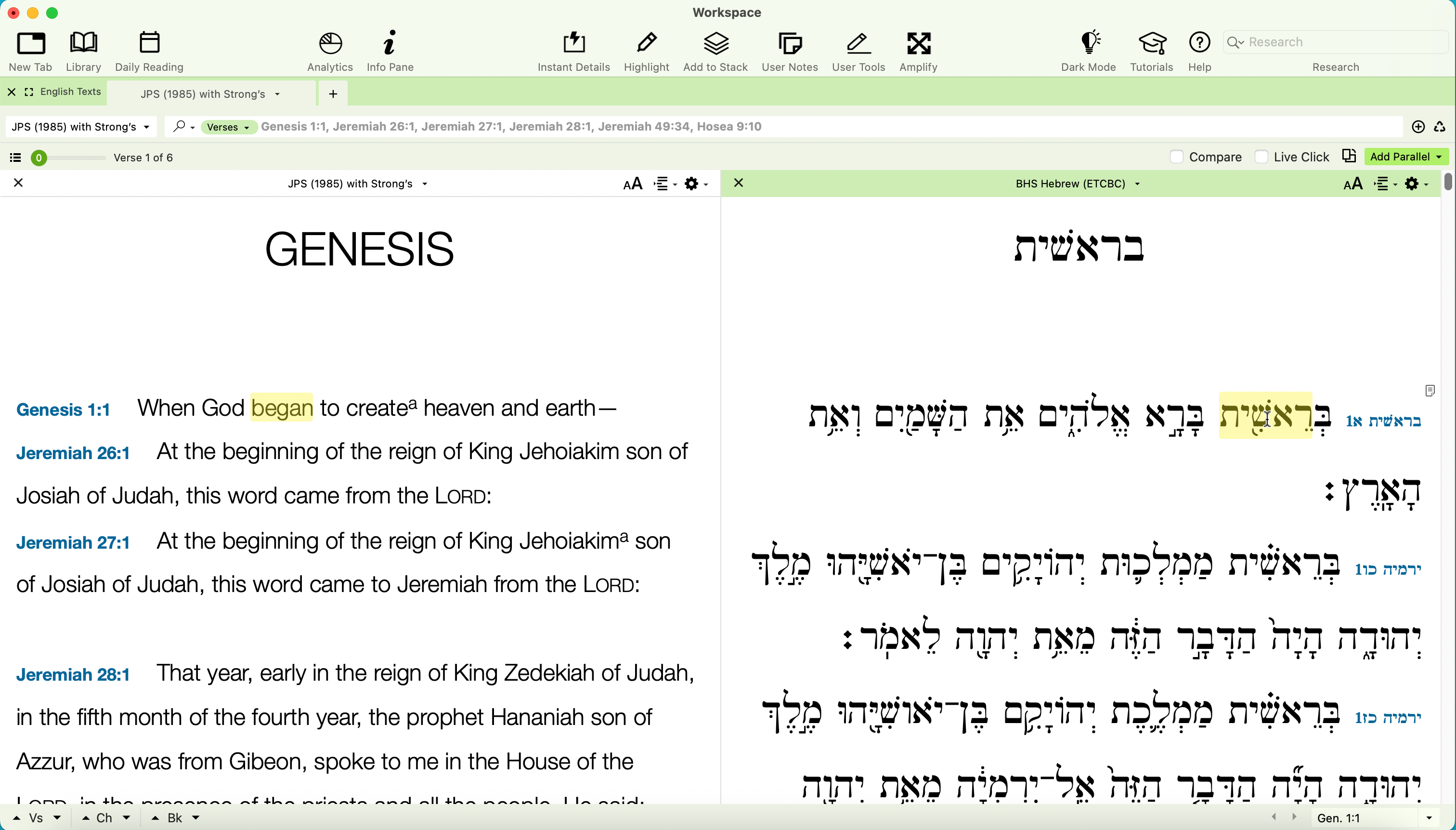
Step 6: Additionally you can parallel texts, too.
Thanks for reading and now the power is yours.
0
Please sign in to leave a comment.
Comments
0 comments