No Colors available in Atlas

On my mac (intel) the colors in atlas are missing.
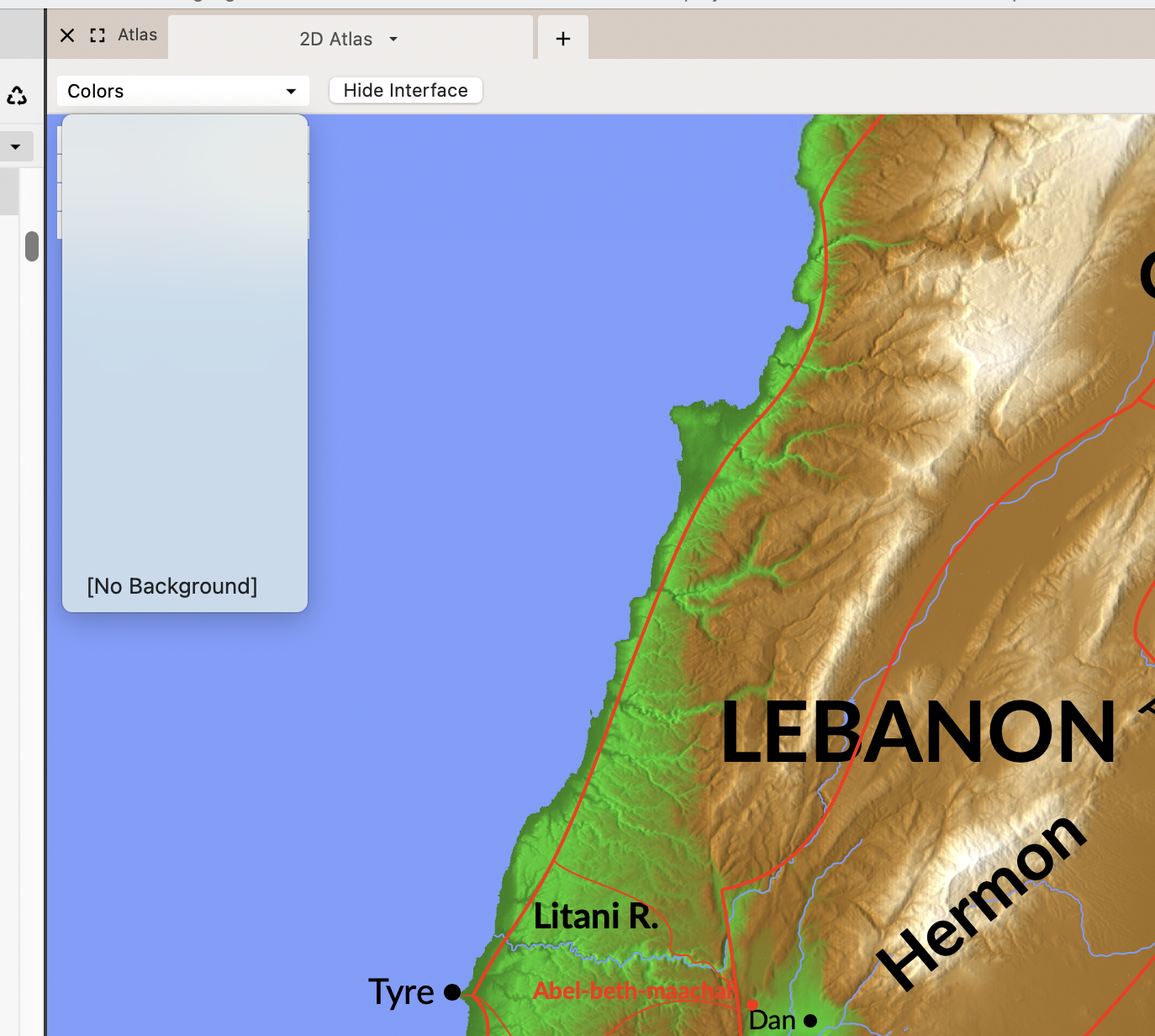
They are present in my macbook M1.
Is there a solution available?
I'm on the latest stable version
-

Check to see if the files exist by choosing the FINDER
(1) Use menu items FINDER > GO > GO TO FOLDER …
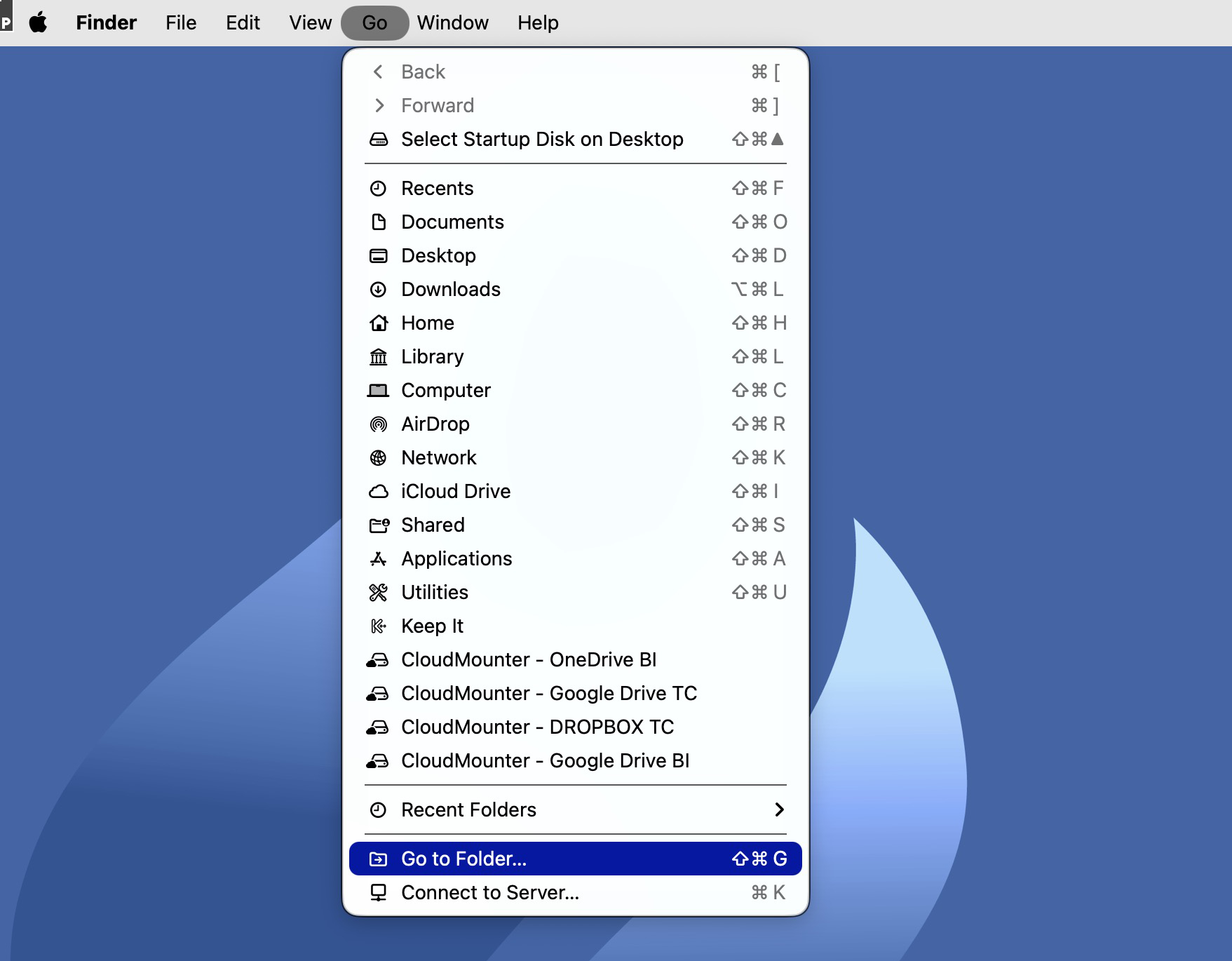
(2) This will evoke a NAVIGATION WINDOW. PASTE in the following PATH (copy the string below)
~/Library/Application Support/Accordance/Atlas files/Backgrounds(3) Pressing the Enter key opens the Backgrounds Folder. If the Colors are installed, this window appears
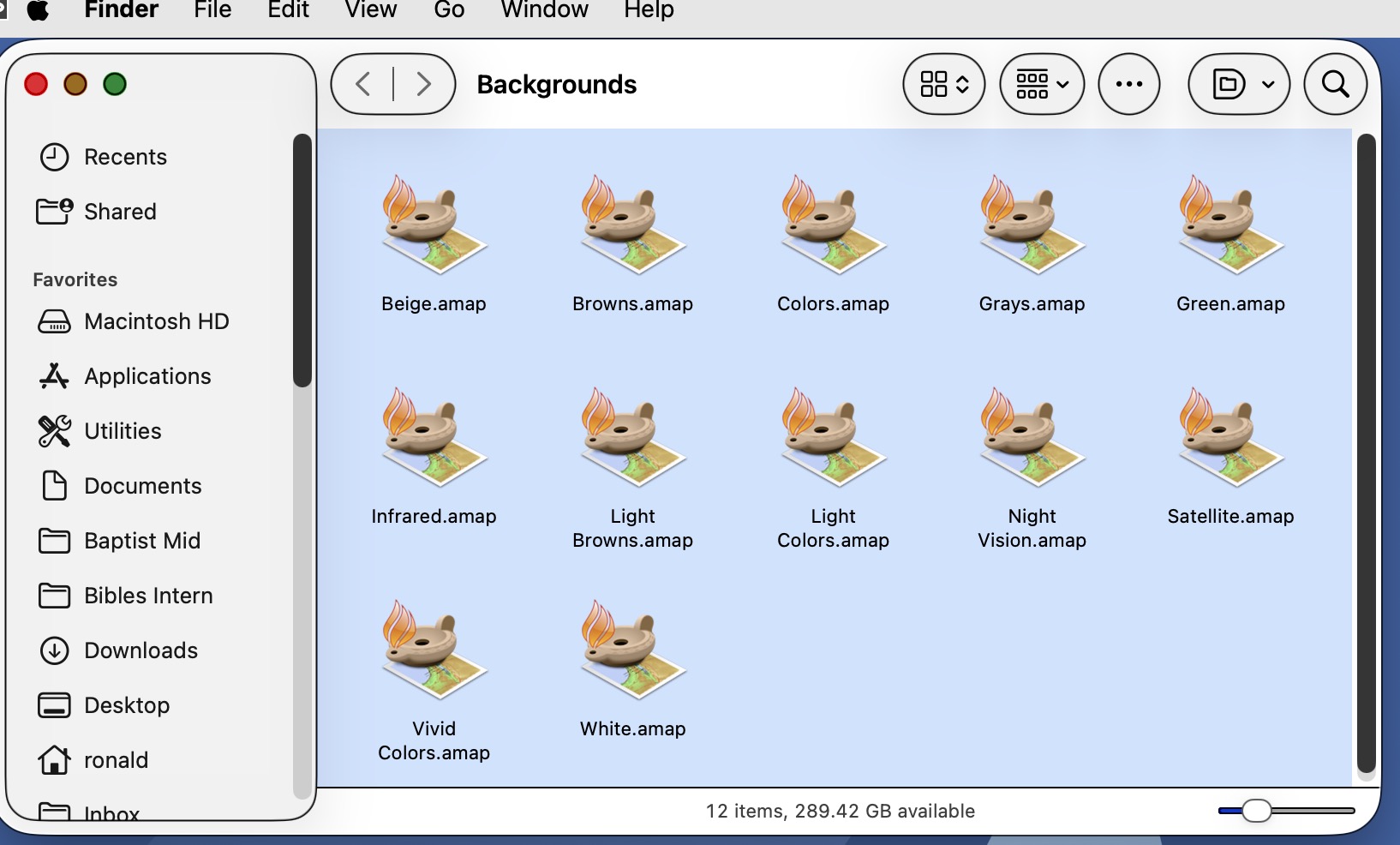
(4) If it does not look like this, the ACCORDANCE ATLAS must be UNINSTALLED and REINSTALLED.
UNINSTALLING ATLAS on Accordance
(1) On your Mac M1 OS X, WHILE holding down the Option key, double-click the ACCORDANCE icon. Upon launch, the Safe Mode Screen will appear.
(2) Select the Check-Box to “Uninstall Atlas”, and then click the “Launch Accordance” Button
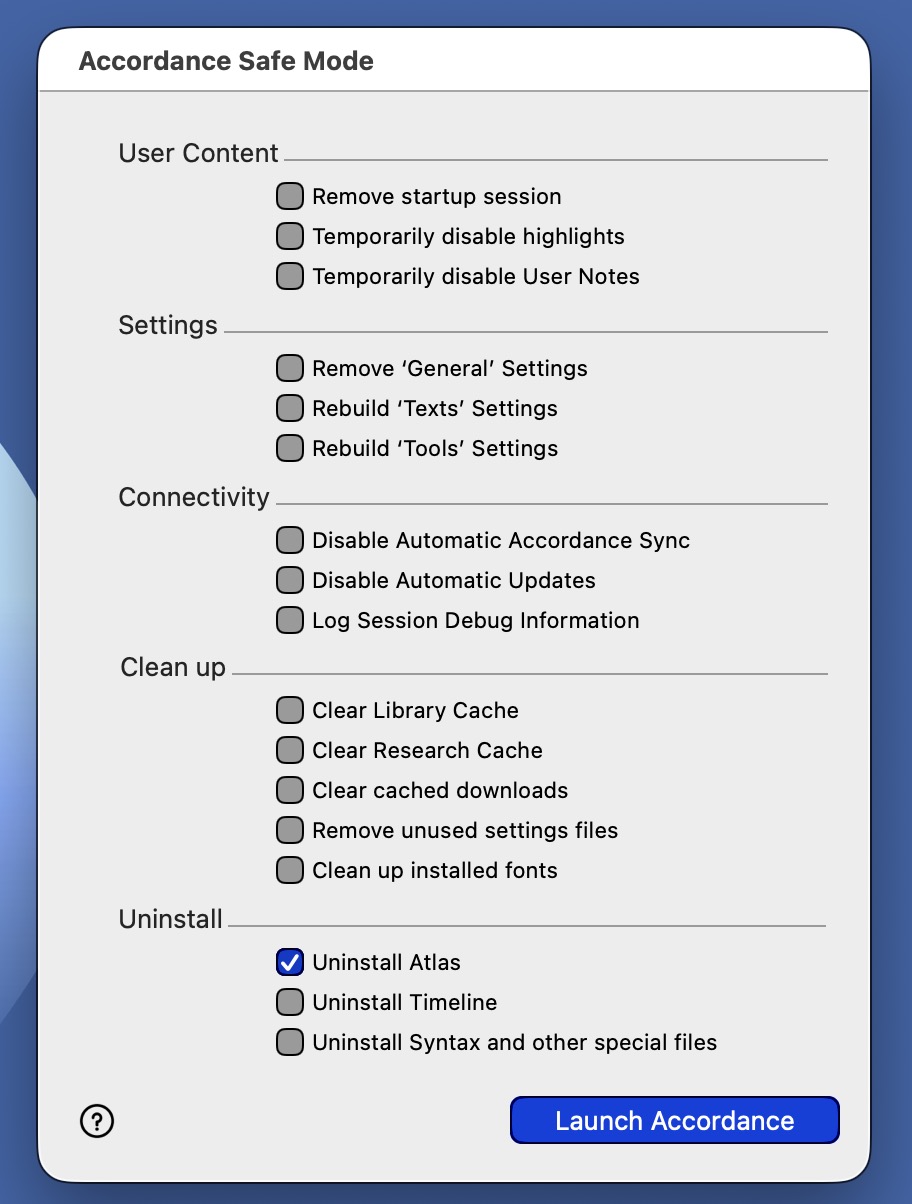
(3) Then SELECT the EASY INSTALL … menu item from the Accordance Menu, and reinstall the ATLAS tool.
1 -
Thank you very much. It now works perfectly!
Hans
1
Please sign in to leave a comment.
Comments
2 comments